Mastering Geometry in SwiftUI - GeometryReader, GeometryProxy & onGeometryChange
SwiftUI's layout system is declarative, adaptive, and proposal-driven. Most of the time, stacks and spacers are enough. But the moment you need to:
- Track scroll offset
- Build a collapsing header
- Implement parallax
- Create a fully custom layout
- React to safe area changes
You enter the world of geometry.
Understanding geometry in SwiftUI isn't about memorizing APIs. It's about understanding how layout works and where geometry fits inside that system.
In this article, we’ll cover:
- How SwiftUI layout actually works
GeometryReaderGeometryProxy(the core abstraction)- Coordinate spaces
- Measuring child views with preferences
onGeometryChange(modern observation API)- Geometry vs the
Layoutprotocol - Pitfalls and best practices
This is a long-form, architectural deep dive — not just an API tour.
How SwiftUI Layout Actually Works
SwiftUI layout follows a three-phase process:
- Parent proposes a size
- Child chooses a size
- Parent places the child
Unlike Auto Layout, SwiftUI does not solve constraints. It negotiates size.
For example:
VStack {
    Text("Hello")
    Text("World")
}
What happens internally?
VStackreceives a size proposal from its parent.- It proposes a width to each child.
- Each
Textreturns its ideal height. VStackstacks them vertically and reports its own size upward.
Geometry APIs allow us to inspect the result of that negotiation.
They do not control layout — they observe it.
That distinction is critical.
GeometryReader
GeometryReader is the original way to access layout information in SwiftUI.
GeometryReader { proxy in
    Text("Width: \(proxy.size.width)")
}
It gives you a GeometryProxy, which contains information about:
- The view’s size
- Its frame in different coordinate spaces
- Safe area insets
Important Behavior
GeometryReader expands to fill all available space.
Example:
VStack {
    GeometryReader { proxy in
        Color.red
    }
}
Output:
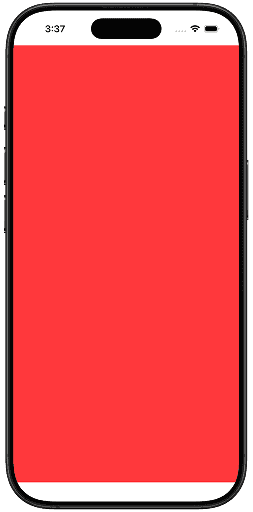
The red view will take all vertical space.
This happens because GeometryReader is itself a layout container.
That’s why it’s powerful — and why it can be intrusive.
GeometryProxy - The Core Abstraction
Both GeometryReader and onGeometryChange expose the same type:
GeometryProxyThis is the heart of SwiftUI geometry.
Think of
GeometryProxyas a read-only snapshot of resolved layout information.
It does not control layout. It reflects it.
Let’s examine its key APIs.
size
proxy.sizeReturns the resolved size of the view during that layout pass.
Example:
GeometryReader { proxy in
    Rectangle()
        .fill(.blue)
        .frame(height: proxy.size.width * 0.5)
}
Output:
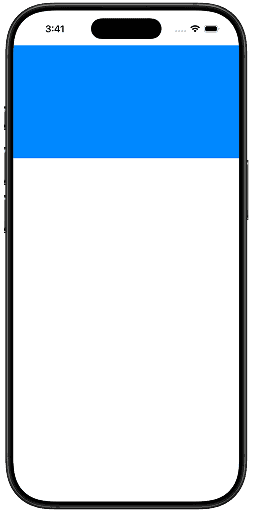
Here we’re building a responsive rectangle whose height is half its width.
Important nuance:
- This is not the proposed size.
- It is the size after negotiation.
frame(in:)
This is where things get powerful.
proxy.frame(in: .global)Returns a CGRect representing the view’s position in a specific coordinate space.
Available coordinate spaces:
.local.global.named("custom")
Example:
GeometryReader { proxy in
    let frame = proxy.frame(in: .global)

    Text("Y: \(frame.minY)")
}
Output:
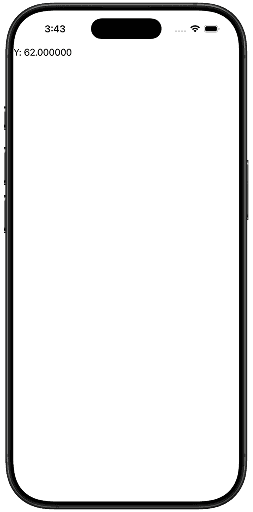
This enables:
- Scroll offset detection
- Sticky headers
- Parallax animations
- Visibility detection
safeAreaInsets
proxy.safeAreaInsetsReturns safe area values at that layout location.
Example:
GeometryReader { proxy in
    VStack {
        Text("Top inset: \(proxy.safeAreaInsets.top)")
    }
}
Output:

Useful for:
- Custom navigation bars
- Full-screen backgrounds
- Keyboard-aware layouts
- Dynamic island spacing
Coordinate Spaces Explained
Understanding coordinate spaces is essential.
SwiftUI supports three types.
.local
proxy.frame(in: .local)Coordinates relative to the GeometryReader.
.global
proxy.frame(in: .global)Coordinates relative to the entire screen.
.named("custom")
You can define custom spaces.
ScrollView {
    VStack {
        GeometryReader { proxy in
            let frame = proxy.frame(in: .named("scroll"))
            Text("Offset: \(frame.minY)")
        }
        .frame(height: 100)
    }
}
.coordinateSpace(name: "scroll")
Output:
Named spaces are ideal for scroll-based effects.
Measuring Child Views with Preferences
GeometryReader measures its own container.
But what if you need to measure a child view?
This is where PreferenceKey comes in.
Step 1: Define a PreferenceKey
struct SizePreferenceKey: PreferenceKey {
    static var defaultValue: CGSize = .zero

    static func reduce(value: inout CGSize, nextValue: () -> CGSize) {
        value = nextValue()
    }
}
Step 2: Attach Geometry in Background
Text("Measure me")
    .background(
        GeometryReader { proxy in
            Color.clear
                .preference(key: SizePreferenceKey.self,
                            value: proxy.size)
        }
    )
Step 3: Observe Changes
.onPreferenceChange(SizePreferenceKey.self) { size in
    print("Size:", size)
}
This pattern is foundational for advanced layout techniques.
.onGeometryChange - The Modern Way
GeometryReader participates in layout.
.onGeometryChange does not.
It allows you to observe geometry changes without wrapping your view.
struct GeometryChangeExample: View {
    @State private var size: CGSize = .zero

    var body: some View {
        Text("Measure me")
            .onGeometryChange(for: CGSize.self) { proxy in
                proxy.size
            } action: { newSize in
                size = newSize
            }
    }
}
API breakdown:
.onGeometryChange(for: Value.Type) { proxy in
    // extract value
} action: { value in
    // react to change
}
Why this matters:
- No layout expansion
- Cleaner code
- More declarative
- Safer state updates
Scroll Offset Example (Modern Approach)
struct ModernScrollOffset: View {
    @State private var offset: CGFloat = 0

    var body: some View {
        ScrollView {
            VStack {
                Text("Header")
                    .font(.largeTitle)
                    .opacity(offset < -50 ? 0 : 1)
                    .onGeometryChange(for: CGFloat.self) { proxy in
                        proxy.frame(in: .global).minY
                    } action: { value in
                        offset = value
                    }

                ForEach(0..<50) { index in
                    Text("Row \(index)")
                        .padding()
                        .frame(maxWidth: .infinity)
                }
            }
        }
    }
}
Output:
Notice:
- No container view
- No unexpected layout behavior
- Pure observation
GeometryReader vs .onGeometryChange
| Feature | GeometryReader |
.onGeometryChange |
|---|---|---|
| Participates in layout | Yes | No |
| Expands to fill space | Yes | No |
| Custom layout logic | Yes | No |
| Pure observation | Not ideal | Ideal |
| Modern direction | Legacy-heavy | Preferred |
Rule of thumb:
- Use
GeometryReaderwhen building layout. - Use
.onGeometryChangewhen observing layout.
Geometry vs the Layout Protocol
Since iOS 16, SwiftUI provides the Layout protocol for custom layout containers.
Instead of geometry hacks, you can write:
struct EqualWidthLayout: Layout {
    func sizeThatFits(proposal: ProposedViewSize,
                      subviews: Subviews,
                      cache: inout ()) -> CGSize {

        let width = proposal.width ?? 0
        let height = subviews
            .map { $0.sizeThatFits(.unspecified).height }
            .reduce(0, +)

        return CGSize(width: width, height: height)
    }

    func placeSubviews(in bounds: CGRect,
                       proposal: ProposedViewSize,
                       subviews: Subviews,
                       cache: inout ()) {

        var y = bounds.minY

        for subview in subviews {
            let size = subview.sizeThatFits(.unspecified)

            subview.place(
                at: CGPoint(x: bounds.minX, y: y),
                proposal: ProposedViewSize(width: bounds.width,
                                           height: size.height)
            )

            y += size.height
        }
    }
}

struct LayoutTestView: View {
    var body: some View {
        EqualWidthLayout {
            Text("Short")
                .padding()
                .background(.blue.opacity(0.3))
                .border(.blue)

            Text("This is a much longer piece of text")
                .padding()
                .background(.green.opacity(0.3))
                .border(.blue)

            Text("Medium length")
                .padding()
                .background(.orange.opacity(0.3))
                .border(.blue)
        }
        .padding()
        .border(.red)
    }
}
Output:
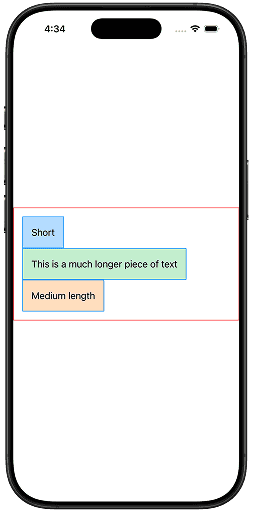
Modern SwiftUI encourages:
- Custom layout →
Layout - Geometry observation →
.onGeometryChange GeometryReader→ edge cases
Common Pitfalls
Wrapping entire screens in GeometryReader
Leads to unintended expansion.
Creating layout feedback loops
If geometry updates state that affects layout, you can trigger infinite re-layout cycles.
Be cautious with:
.onGeometryChange { value in
    self.size = value
}
If size affects layout, you may cause continuous updates.
Using geometry when Spacer is enough
Stacks + Spacer solve most layout needs.
Geometry is not the default tool.
The Mental Model
Here’s the refined mental model:
- SwiftUI describes layout declaratively.
- Layout negotiation happens internally.
GeometryProxygives you a snapshot of the result.GeometryReaderembeds geometry into layout..onGeometryChangeobserves layout changes.Layoutcustomizes layout behavior.
Geometry is not about controlling layout.
It’s about understanding it.
Final Thoughts
Most SwiftUI layout bugs don’t come from SwiftUI.
They come from misunderstanding:
- Size proposals
- Coordinate spaces
- When geometry is resolved
- How state interacts with layout
Once you internalize:
- Proposal-based layout
GeometryProxyas read-only snapshot- Observation vs participation
You stop fighting SwiftUI — and start working with it.
Geometry in SwiftUI is powerful.
Thank you for reading. If you have any questions, feel free to follow me on X and send me a DM. If you enjoyed this article and would like to support my work, Buy me a coffee ☕️